
The newsletter content type is used for providing a simple list of newlsetters on the website with links to uploaded PDFs. Don't confuse with the library content type which is used for itemising individual articles within newsletters. Before reading this, you should be familiar with the general help for all content editors/creators.
Mandatory fields
The title field is a mandatory Drupal field, but we don't actually use it when we display a list of newsletters, so although you have to put something in here, it doesn't actually get displayed! Probably best to set it to something like 'Issue nnn' (where nnn is replaced by the issue number).
In the season or moth field, enter either the month (earlier editions of newsletter) or the season which appears on the front cover of the newsletter. This is a drop-down list, so you must pick from the options provided.
In the year field, enter the year the newsletter was issued.
In the issue field, enter the issue number of the newsletter. When the newsletters are listed, this field is used to sort them (descending order).
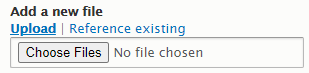
The field PDF file is where you attached a PDF copy of the newsletter. Use the choose files button to locate the PDF file(s) to upload (if you can't see the choose files button, first click the upload link).
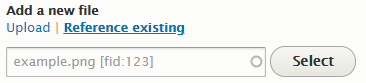
Very often you may want to reference a PDF file which is already uploaded to the website because it has already been associated with an individual article from the newsletter which has been entered into the online library. In this case, click the reference exsiting link - the choose files buttons will be replaced by a field where you can start typing the name of the existing PDF already uploaded. As you do so a list of matching files already uploaded to the website will be presented to you. Click on the one you want and then click the select button.
Editing existing newsletter items
If you want to edit an existing newsletter item, use the BAS newsletters page to locate the item and then click on the '(item)' link. Then click on the edit tab to change any of the field values outlined above.