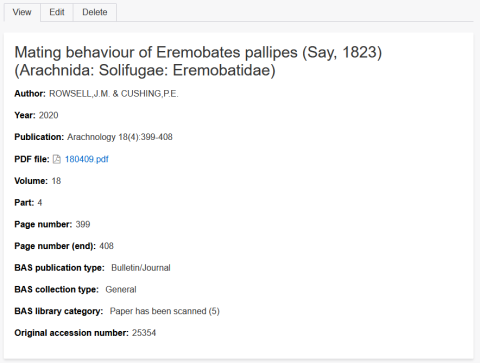
The library content type is somewhat different from other content types on our website because a substantial number of fields are optional (for reasons explained below). This help page will deal with the madatory and optional fields separately. Before reading this, you should be familiar with the general help for all content editors/creators.
Mandatory fields
In title of article field, specify the title of the article exactly as you would like it to appear in the library listing. For example, in the example shown below, the value of this field is: Mating behaviour of Eremobates pallipes (Say, 1823) (Arachnida: Solifugae: Eremobatidae).

In the author field, enter the names of the authors exactly as you want them to appear in the library listings. So in the example show above, this would be: ROWSELL,J.M. & CUSHING,P.E.
In the publication field, enter the details of the publication exactly as you want it to appear in the listed library paper. So in the example above, the entered value would be: Arachnology 18(4): 339-408. So it includes the name of the publication plus volume, part number and page numbers in the usual format. (Note that there are optional fields where these values can be specified separately - see below - but it is this publication field that is the important one.)
I've made the fields BAS collection type and BAS library category madatory because of the records in our old database had values for them. However we do not currently use them for filtering on the library search page.
Optional but recommended fields
In the year field, enter the year the article was published. If you want to express a year range, enter the end of the range in the year (end) field. The year is an optional field because some of the articles in our library don't have a year specified, but obviously in most cases you will want to specify a value for year. It appears in the library listings in parentheses after the authors. (You don't need to enter parentheses in the field.)
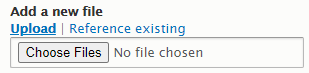
The field PDF file is where you can attached a PDF resource to the article. In most cases you will only attach one, but it is possible to attach more than one. Use the choose files button to locate the PDF file(s) to upload (if you can't see the choose files button, first click the upload link) . The PDF file is an optional field because sometimes there are no PDF resources to attach to the article.
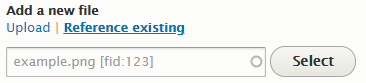
Sometimes you may want to reference a PDF file which is already uploaded to the website. A good example of this is for newsletters which are uploaded as a single PDF but then separate library entries are added for each article. In this case, use the choose files button to upload the file for the first article, but for subsequent articles, click the reference exsiting link - the choose files buttons will be replaced by a field where you can start typing the name of the existing PDF already uploaded. As you do so a list of matching files already uploaded to the website will be presented to you. Click on the one you want and then click the select button.
The web address can be used when a PDF is not being attached, but you want to associate the article with a resource available elsewhere on the web. You can enter more than one web address if you wish. To add more than one web address, click the add another item button.
The field BAS publication type is not mandatory because not all current library records have a value for it. However, I highly recommend using it because users on the library search page are able to filter on this field and it is a useful way of listing just Newsletters or Arachnology articles for example.
Other optional fields
Remarks is a free-fromat field where you can keep any notes relevant to the article. These are not displayed to users of the website and are only useful for librarians.
The PDF availability was added to preserve information from the former library website. You can enter a value in this field if you like. We don't currently make use if it, but we could, at a future date use it to filter library listing views based on the value. This could be a useful working view for librarians.
The separate fields for volume, part, page number and page number (end) are there because some of the records in our old library database had these fields, so I retained them in the new database. Their utility is limited because not all library records have them. However, if you want to fill these fields in - by all means do. We don't currently offer them as filters to users of the library search page.
Creating new library items
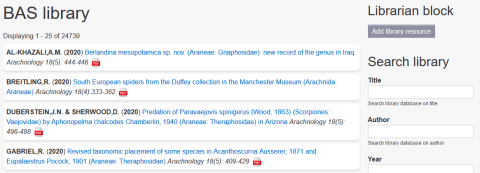
If you are logged in to the website and you have been given the librarian role, then you will be able to create new library content (i.e. new items) using the methods described in the general help for all content editors/creators.
But for conveniece, users with the librarian role will also see a librarian block on the top-right of the library search page. This has a button - add library resource - which you can use to quickly add a new library item.
Editing existing library items
If you want to edit an existing library item, or simply view the fields which are not visible on the main library search, use the library search page to locate the item and then click on the title of the article. That will give you a view like that shown below. Simply click on the edit tab to change any of the field values outlined above.