
In contrast to our old website, the new Drupal website has a single page for links, but it is both searchable and filterable which enables users to find links that are relevant to their needs much more quickly.
The links do not necessarily have to link to a web page, they can contain address details including telephone numbers and also email addresses. Some examples of different types of links which appear on our website are shown below:

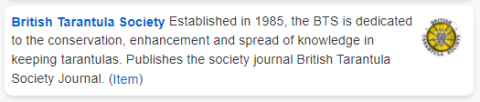


Because our links are very flexible in terms of the information they display, there are quite a few fields available to you when you are creating a new link. But in most cases, they are optional and you will often leave them blank.
Three are three madatory fields when you create a new link:
- Title
- Description
- Link type
Title and description and self-explanatory. If you provide a web page link (see below) then this is attached to the title you supply so that when a user clicks on the title, they are taken to the web page. Descriptions should be reasonably short to avoid cluttering the user's view of the links but descriptive enough to include any keywords that will help users find the resource where relevant.
The link type field is a selectable list that allows yo to tag the link with one or more categories that users can user to filter the links. Select one or more of the following categories from the list:
- Arachnological societies
- Arachnological information
- Arachnological journals
- Other journals
- Members websites
- University departments
- Suppliers - general
- Suppliers - microscopy
- Suppliers - books
To select more than one category, hold down your computer's control key ([Ctrl]) when you click on the items.
The remaining fields are all optional, but all links will need one or more of them to be of any use!
The link field is where you put the web link (if you have one). Normally this will be an external link and should start with http:// or https://.
If you have a small image, e.g. a logo, that you want to associate with the link, you can select it using the add media button under the link icon field. This is very similar to the process of adding image to body content (but without the complication of specifying how it is to be displayed). So for further help on selecting images, see the section 'Adding images to the body field' on the general content creation help page.
The address field is used to provide a postal address if one is required for the link. Likewise you can add one or more telephone numbers and email addresses using the telephone and email fields. If you need to provide more than one telephone number or email address, use the relevant add another item button.
IMPORTANT NOTE: The three fields discussed above, namely address, telephone and email, should rarely need to be provided on new links. These were useful in the early days of the internet before many organisations had a web presence, but normally nowadays a link to their website is sufficient and preferable to providing the details separately since the organisations own website can be regarded as the most trusted source for contact details and lessens the risk of our link information being out of date.
The sort order field is there to give some control over where the page is listed. For the most part, you can leave this at the default value of 10. If the page is not appearing in the appropriate sort position, you can contact the webmaster to discuss it. (In general, the lower the number, the higher it appears in the list of information pages.)